Notion Backup to Markdown: 5 Ways to Export Locally
Markdown is the right backup format for Notion. It's plain text, future-proof, and opens in Obsidian, VS Code, Logseq, Foam, or any text editor. If Notion disappears tomorrow, a markdown export is the only format that survives without a parser. The problem is that "Notion backup to markdown" isn't one workflow — it's five, with different tradeoffs around automation, locality, and how clean the output actually is.
This post compares all five: Notion's native export, cloud-based backup services, CLI tools, the new Markdown Content API, and local-only Chrome extensions. Pick the one that matches your tolerance for friction and your stance on storing backups in the cloud.
Why Markdown Is the Right Backup Format
Markdown is plain text with a tiny syntax overhead. It opens in any text editor, syncs with any file system, and is the native format for Obsidian, VS Code, Logseq, Bear, Foam, and dozens of other tools. A markdown backup of your Notion workspace is portable — you can switch tools without re-exporting, search across all of it with grep, and version-control it with git.
The alternatives are worse. HTML exports preserve formatting but break when Notion's internal classes change. PDF exports are read-only and lose your document structure entirely. Proprietary .zip formats need a parser to extract. Markdown is the lowest-common-denominator format that still preserves headings, links, lists, code blocks, and basic formatting.
Citation capsule: Markdown is the most durable Notion backup format because it's plain text with a tiny syntax layer. It opens in any editor, survives any tool migration, supports grep-style search across your entire workspace, and version-controls cleanly with git. HTML exports break on Notion class changes; PDF loses structure; proprietary formats require a parser.
The downside of markdown: it loses Notion-specific features. Database properties become CSV side-files (or get stripped). Synced blocks become duplicate content. Embeds and toggles flatten. None of those are dealbreakers for a backup — you're optimizing for "data is recoverable," not "page looks identical."
Method 1: Notion's Built-In Export
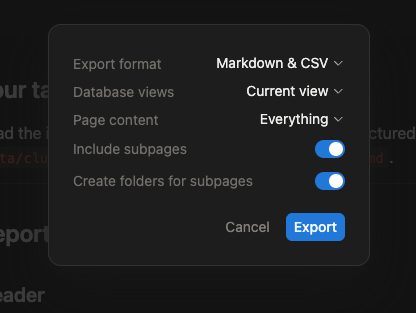
Notion ships a workspace-wide markdown export under Settings → General → Export all workspace content. Pick "Markdown & CSV," wait for the server-side job to run, and download a ZIP file from the email link.
It works. It also has problems.
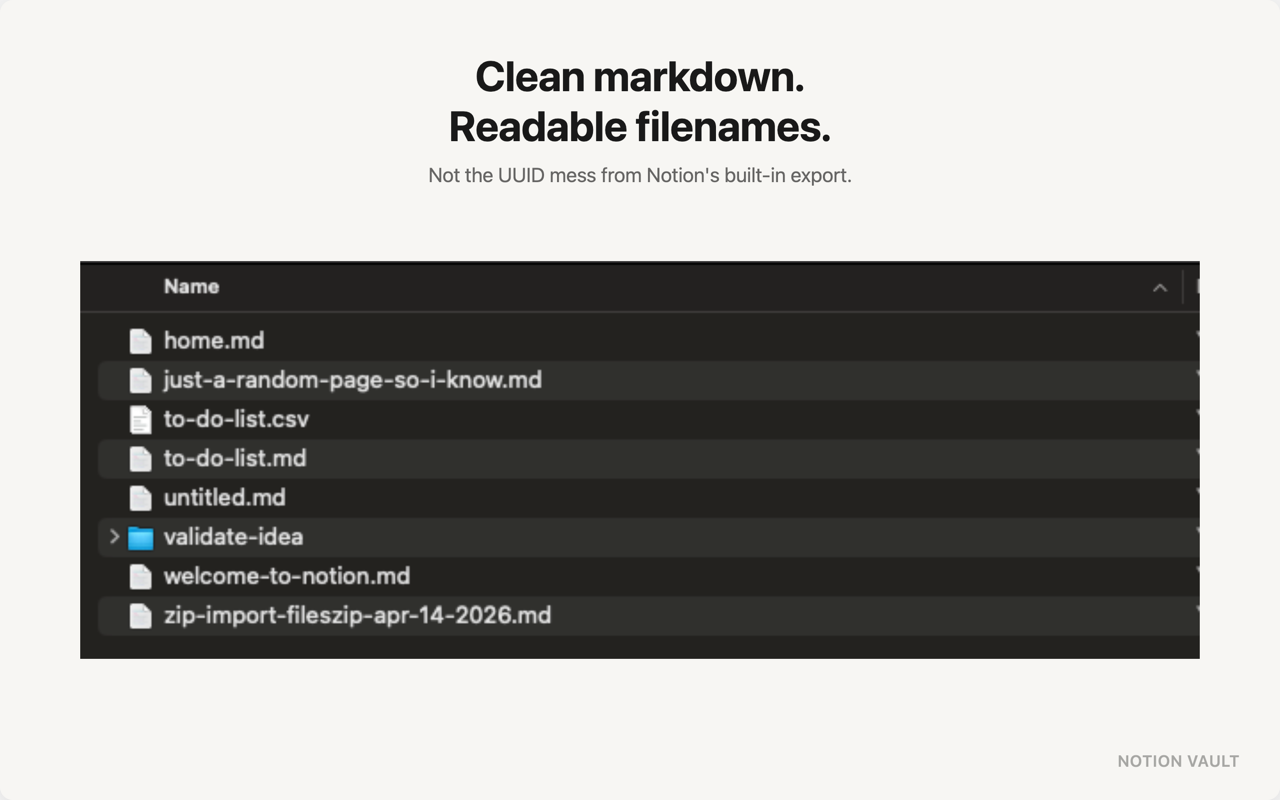
Filenames get a 32-character hex UUID appended — Meeting Notes a1b2c3d4e5f6789012345678abcdef01.md is not searchable. Nested page hierarchies create paths longer than Windows' 260-character limit, causing extraction failures. Database relations export as raw page IDs instead of human-readable links. Rich content inside table cells (images, checkboxes, formulas) gets stripped to plain text. Large workspaces (500MB+ with deep relations) sometimes time out and silently fail.
Most critically: it's manual. You have to remember to run it. Most people don't, and by the time they need a backup, the data they need is already gone.
Best fit: one-time export for a workspace you're abandoning. Not viable as an ongoing backup strategy.
Method 2: Cloud-Based Backup Services
Three services automate Notion-to-markdown backups: Notion Backups, BackupLABS, and Backups.so. All three follow the same pattern — connect via OAuth, pull through the Notion API, store the markdown output on their servers or a cloud provider you authorize (Google Drive, S3, Dropbox).
Notion Backups specifically exports to markdown only, no CSV side-files. The output is cleaner than the native export — readable filenames, working internal links, structured directories. Scheduling runs daily or weekly without intervention.
The trade is privacy. Your Notion content now sits on a third-party server you don't control, indefinitely, encrypted by their key. Notion Backups' Pro plan runs $28/month for the higher-frequency backups. Over a year that's $336 for a backup service for a tool that itself costs $96-$192/year. The backup costs more than the product.
Best fit: teams who need automation, don't have privacy-sensitive content, and don't mind the recurring cost.
Method 3: CLI and Open-Source Tools
For developers, several open-source tools convert Notion to markdown without a paid service. The most-used:
- notion-to-md — Node library, 40k+ weekly downloads. Convert any page or block tree to clean markdown. Bring your own Notion API token, write a small script to walk your workspace.
- notion-exporter — CLI that bulk-exports pages and databases to markdown, AsciiDoctor, or Word.
- dwarvesf/notion-export-markdown — Internal tool built for Obsidian migration. Good reference if you want to fork.
These are the cleanest option if you're comfortable writing 30 lines of glue. Run them on a cron job, output to a local folder, version-control with git. The output is markdown, period — no proprietary wrapper, no SaaS account, no recurring cost.
The catch: you have to maintain them yourself. Notion's public API has rate limits (3 requests/second) and doesn't return everything the internal API does. Synced blocks, some database property types, and certain inline content show up differently than in the native export.
Best fit: developers who want full control, scheduled local backups, and don't mind owning the maintenance.
Method 4: Notion's New Markdown Content API
Notion launched a Markdown Content API on February 26, 2026 — a single API call returns a page rendered as clean enhanced markdown, no per-block parsing required. This drastically simplifies what tools like notion-to-md had to do manually.
If you're building your own backup script today, use this API directly. Fewer edge cases, more accurate output, less code. The official docs cover the endpoint shape and the markdown dialect.
The catch: it's an API, not a backup tool. You still need a runner (cron, GitHub Actions, a serverless function) to call it on a schedule and store the output somewhere. The work of "fetch, store, schedule, monitor" is still on you.
Best fit: developers building a custom workflow today — the new API is the right primitive to build on.
Method 5: Local-Only Chrome Extension (Notion Vault)
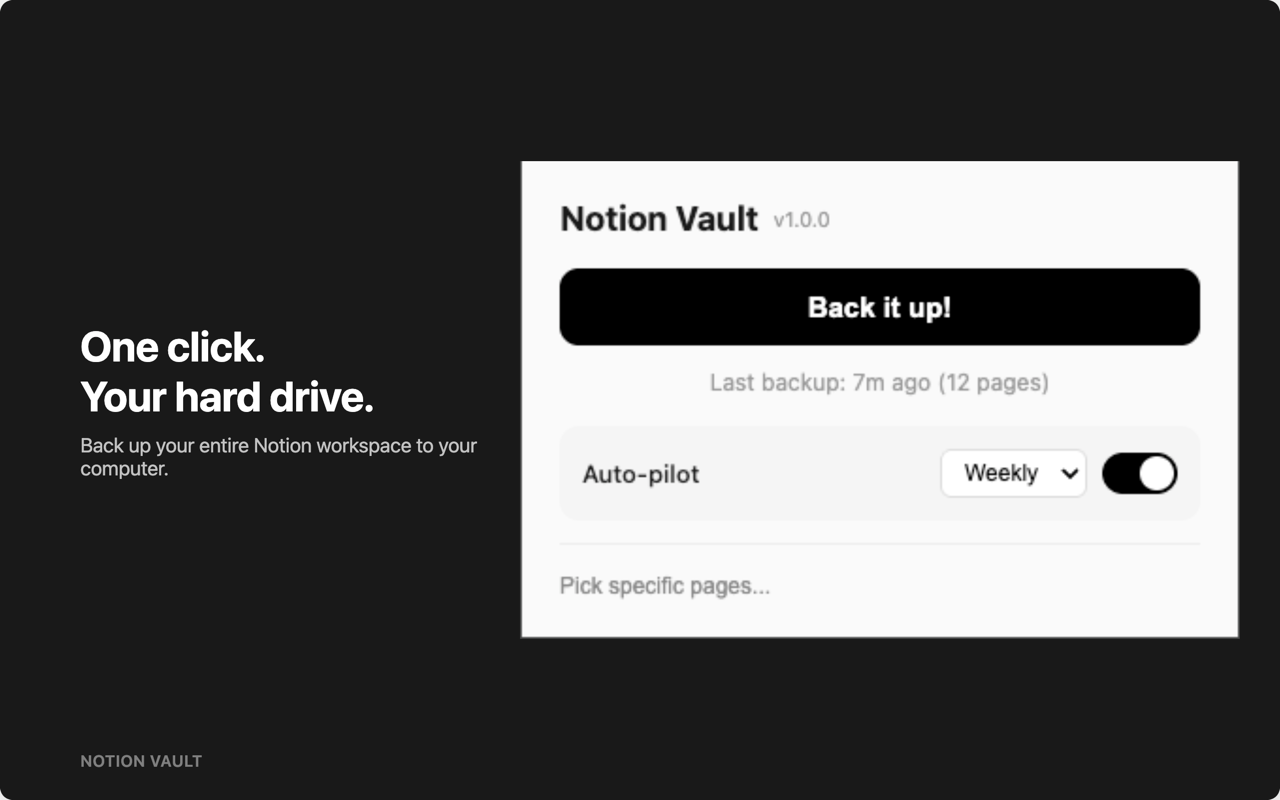
Notion Vault is the option that solves automation and locality at the same time. It's a free Chrome extension that uses your existing Notion browser session to call the same internal API the Notion web app uses, then writes markdown files directly to a local folder you pick.
No cloud, no OAuth token shared with a third party, no recurring cost. Filenames are human-readable (no UUIDs). Internal links between pages become relative markdown links that work in Obsidian and VS Code. Databases export as CSV side-files. Media downloads to a media/ subfolder. Subsequent backups are incremental — only pages with newer last_edited_time get re-downloaded.
Scheduled backups run via Chrome's alarms API. Set it to daily or weekly, and it runs whenever Chrome is open. Sessions you missed run at the next opportunity.
Free, no page limits, no paywalls. Setup:
- Install Notion Vault from the Chrome Web Store
- Log into Notion in the same browser
- Click the extension icon, pick a local folder
- Click "Back up now"
Best fit: anyone who wants automated markdown backups stored only on their own machine, without paying $28/month for the privilege.
Which Method Should You Use?
| You want | Method |
|---|---|
| One-time backup before abandoning Notion | Native export |
| Hands-off cloud backup, willing to pay | Notion Backups or BackupLABS |
| Full developer control, cron-driven | notion-to-md / notion-exporter (CLI) |
| Build your own thing today | Markdown Content API |
| Free, local-only, automated | Notion Vault |
If you're privacy-conscious, on a budget, and don't want to write code: Notion Vault is the only option that ticks all three. If you're a developer optimizing for full control, write a script on the Markdown Content API. If you're a team that doesn't mind paying and storing backups in the cloud, use Notion Backups.
For a deeper comparison of cloud vs local backup strategies, see Notion Offline Backup: Keep Your Data on Your Machine, or the complete Notion backup guide for the broader pillar overview.
Frequently Asked Questions
- Does Notion have a built-in markdown export?
- Yes. Under Settings → General → Export all workspace content, pick "Markdown & CSV." Notion emails you a ZIP file. The format is manual, the filenames include 32-character UUIDs, and large workspaces can fail. It works as a one-shot but isn't viable as an ongoing backup strategy. See Method 1.
- How do I automate Notion-to-markdown backups?
- Three options. Cloud services (Notion Backups, BackupLABS) run scheduled backups on their servers — paid, cloud-stored. A CLI tool (notion-to-md + cron) gives full control if you can write a script. Notion Vault automates scheduled local-only backups from a Chrome extension, free.
- Can I back up Notion to markdown without using a cloud service?
- Yes. Notion Vault writes markdown directly to your local filesystem via the browser's File System Access API — no third-party server. notion-to-md plus a local cron job is the developer equivalent. Both leave the markdown only on your machine. The native Notion export also runs locally after you download the ZIP, but it's manual.
- Which method produces the cleanest markdown?
- Notion Vault and modern CLI tools (notion-to-md on the new Markdown Content API) produce the cleanest output — human-readable filenames, working internal links as relative paths, structured directories. Notion's native export is the worst on this dimension: 32-character UUIDs in every filename, broken relative links, paths that exceed Windows limits in deep workspaces.
Your Notion workspace is one account suspension, ToS misread, or platform incident away from being inaccessible. A markdown backup on a disk you own is the only copy you fully control. Pick the method that matches your tolerance for friction — for most people who don't want to write code, the answer is the free, local, automated one.
Install Notion Vault from the Chrome Web Store — free, local-only, automated →