Notion Offline Backup: Keep Your Data on Your Machine
Notion stores every page, database, and file on its servers. If those servers go down, your account gets suspended, or a bulk-delete propagates before you notice, your data is gone until Notion decides to return it. An offline backup on your own machine is the only copy no one else controls.
Why Notion needs an offline backup
Notion has logged over 450 outages since StatusGator began tracking it in 2020. In March 2024, a systemwide incident prevented users from saving pages or edits for nearly two hours. In April 2026, users saw "Something Went Wrong" errors when loading pages. These are not hypotheticals.
Beyond outages, Notion reserves the right to suspend accounts that violate its terms of service. One widely-discussed case in r/notion involved a user whose entire workspace was deleted by Notion after a ToS violation on a public page. The user had no local copy. Notion has no legal obligation to return your data after a ban.
Notion's help center describes a "shared responsibility model" where data protection falls on the customer. The platform keeps 30-day page history, but you cannot access those backups directly. If your account is locked, that history is locked with it.
An offline backup stored on your own filesystem is the only copy of your Notion data that survives account suspension, outages, and accidental deletion beyond the 30-day window.
What Notion's built-in export actually gives you
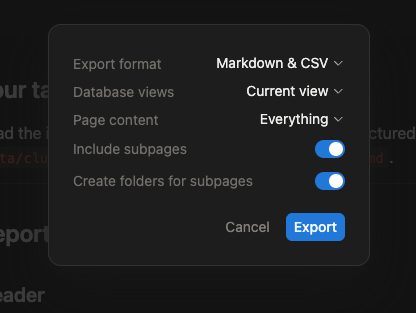
Notion offers a workspace-wide export under Settings > General > Export all workspace content. It works, but with significant friction. The export runs server-side and delivers a ZIP file via email. For large workspaces, this process can time out or fail entirely. Workspaces over 500 MB with deep relational databases are especially prone to failure.
The exported files have problems of their own. Every filename gets a 32-character hexadecimal ID appended, making them unreadable. Nested pages create paths that exceed Windows' 260-character limit. Database relations export as raw internal IDs instead of readable names. Rich content inside table cells -- images, checkboxes -- gets stripped to plain text.
Most critically, the export is manual. Nobody runs a full workspace export every week. By the time you realize you need a backup, the data you need is already gone.
Cloud backup tools and the privacy tradeoff
Three services automate Notion backups today: Notion Backups (notionbackups.com, from $6/month), BackupLABS (backuplabs.io), and Backups.so. All three follow the same pattern: connect via OAuth, pull data through the API, store it on their servers or a cloud provider like Google Drive or S3.
This solves automation but creates a new problem. Your Notion data now sits on a third-party server you do not control. You trust the backup provider to encrypt properly, avoid breaches, stay in business, and not inspect your content. For journals, financial notes, health records, or anything sensitive, that trust requirement matters.
Every major Notion backup service stores your data on third-party cloud infrastructure. If privacy is your primary concern, these tools move the problem rather than solve it.
Cloud-based backups also carry ongoing subscription costs. Notion Backups' Pro plan runs $28/month. Over a year, that is $336 to back up a tool that itself costs $96-$192/year. The backup can cost more than the product. A Notion offline backup avoids the privacy exposure entirely, and Notion Vault is free.
Comparison of backup approaches
| Approach | Automated | Local-only | Ongoing cost | Incremental |
|---|---|---|---|---|
| Notion's built-in export | No | Yes (after download) | Free | No |
| Notion Backups | Yes | No | $6-89/mo | Yes |
| BackupLABS | Yes | No | Free-paid | Yes |
| Open-source scripts (CLI) | Yes (with cron) | Configurable | Free | Varies |
| Notion Vault | Yes | Yes | Free | Yes |
How a local-only backup works
A local-only backup writes files directly to a folder on your computer. No intermediate server. No cloud account. No OAuth token shared with a third party.
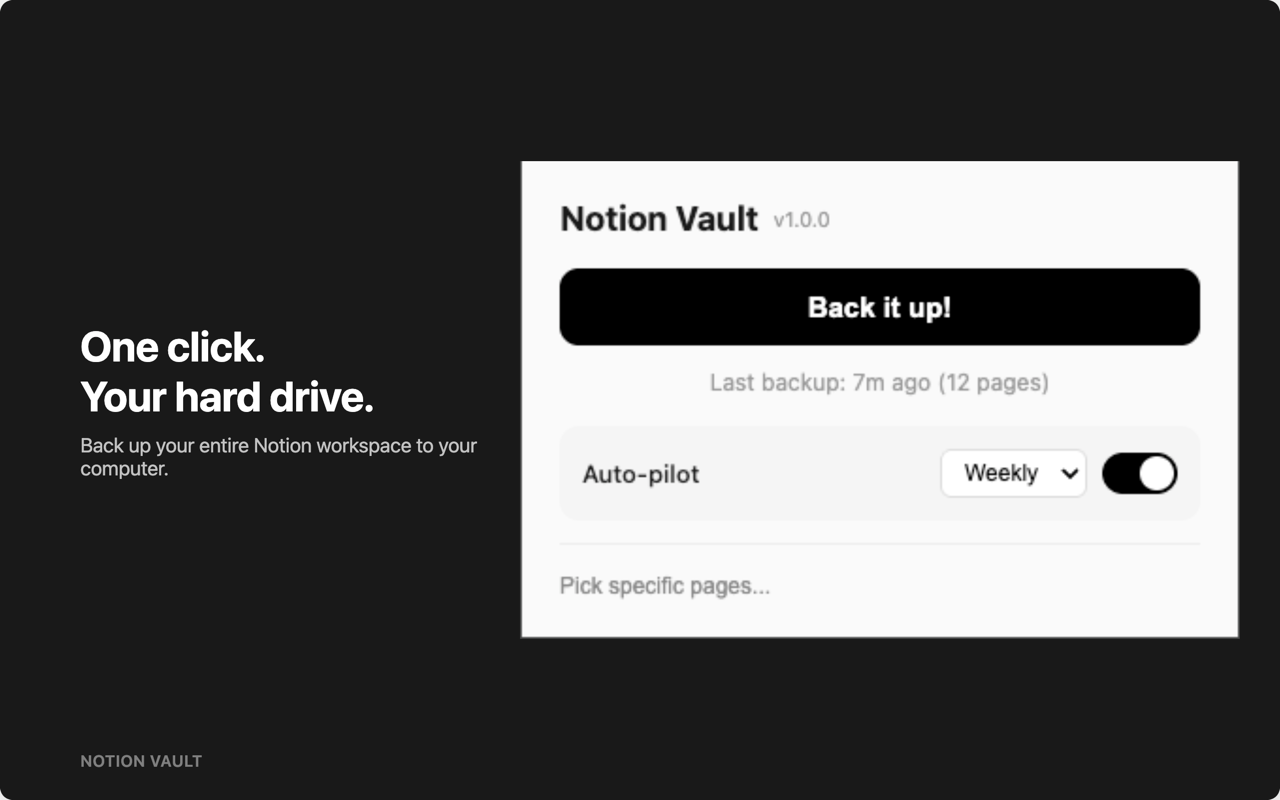
Notion Vault is a Chrome extension we built for this. It uses your existing Notion browser session to call the same internal API the Notion web app uses. When you run a backup, it reads your workspace page-by-page and writes clean markdown files, CSV exports, and downloaded media to a local folder you choose.
After the first full backup, subsequent runs are incremental. Notion Vault checks each page's last_edited_time and only downloads what changed. A workspace with 500 pages where 10 changed since the last backup downloads only those 10 pages.
Scheduled backups run via Chrome's alarms API. Set it to daily or weekly, and it runs automatically when Chrome is open. If Chrome was closed at the scheduled time, the backup runs at the next opportunity.
Notion Vault is completely free — no page limits, no paywalls.
Get Notion Vault on the Chrome Web Store
What a Notion offline backup looks like on disk
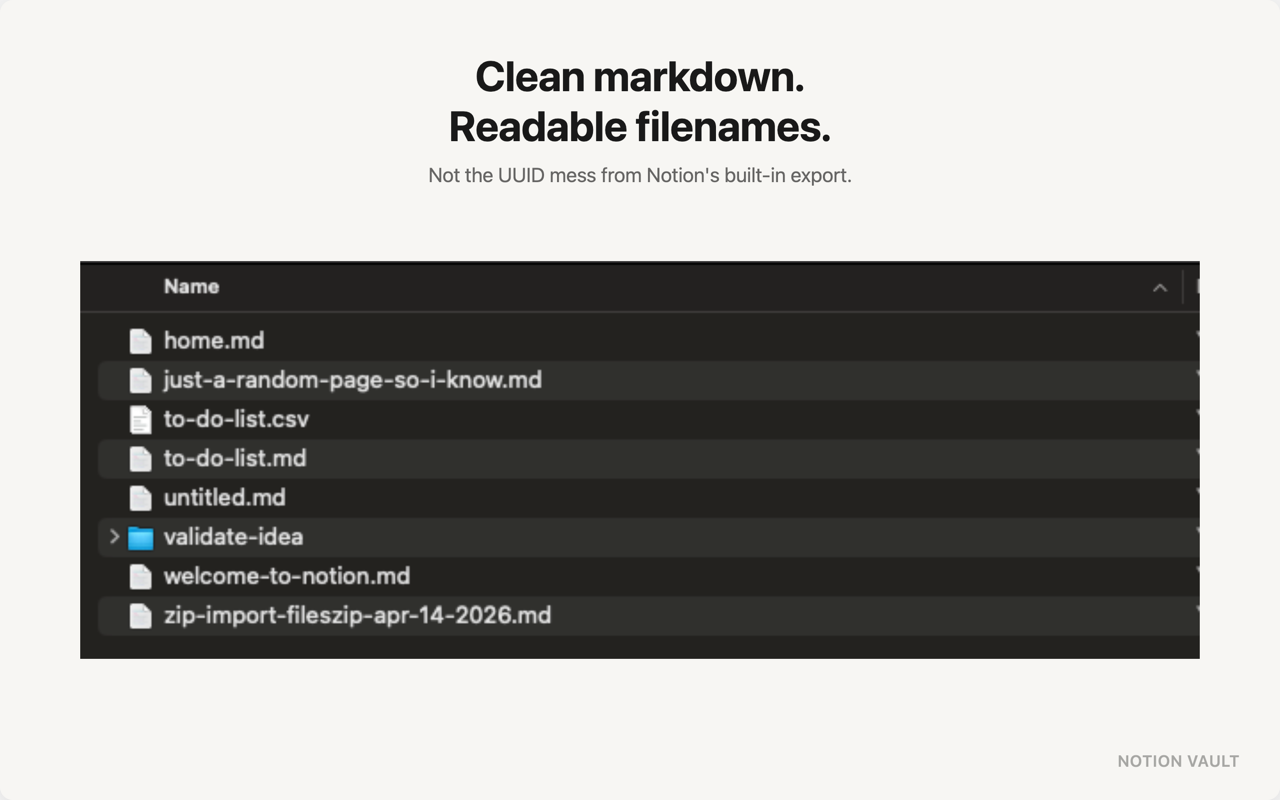
Notion Vault writes files with human-readable names based on page titles, not UUIDs. The folder structure mirrors your Notion workspace hierarchy. Internal links become relative markdown links that work in Obsidian, VS Code, or any text editor.
Databases export as CSV. Media downloads to a subfolder. The result is a portable, greppable copy of your workspace you can open and search without special software. Compare this to Notion's native export, where filenames look like Meeting-Notes-a1b2c3d4e5f6789012345678abcdef01.md. Notion Vault gives you Meeting Notes.md.
Setting up your first offline backup
Getting started takes under two minutes:
- Install Notion Vault from the Chrome Web Store
- Open Notion in your browser and make sure you are logged in
- Click the Notion Vault icon in your extensions bar
- Choose a local folder for your backup destination
- Click "Back up now"
The first run downloads your entire workspace. Depending on size, this takes a few seconds to several minutes. Every subsequent backup only fetches changed pages. To schedule automatic backups, open Notion Vault's settings and pick daily or weekly.
Frequently asked questions
Does Notion Vault upload my data anywhere?
No. Notion Vault writes directly to your local filesystem using the browser's File System Access API. Your data travels from Notion's servers to your browser to your hard drive. No third-party server is involved. No cloud account is required.
Can I back up a team workspace?
Yes. Notion Vault backs up every page you have access to in your workspace, including shared team pages. It uses your existing Notion session, so it sees whatever your account can see.
What happens if Notion changes their internal API?
Notion Vault uses the same endpoints the Notion web app uses. Any breaking change affects the web app too, making it immediately visible. We monitor for API changes and push extension updates through the Chrome Web Store.
Does Notion Vault cost anything?
No. Notion Vault is completely free with no page limits, no feature gates, and no subscription. Incremental backups, scheduling, markdown + CSV export, and media downloads are all included.